 Sozdai
Choosing a Card Style
The first wizard step is style selection. This determines how the card will look: object placement, lighting, background, overall feel. Three options, each suited for a different situation.
Three options
On the "Style" step you see three tabs: "Template", "Reference", and "Custom prompt". Pick one — the others are disabled.
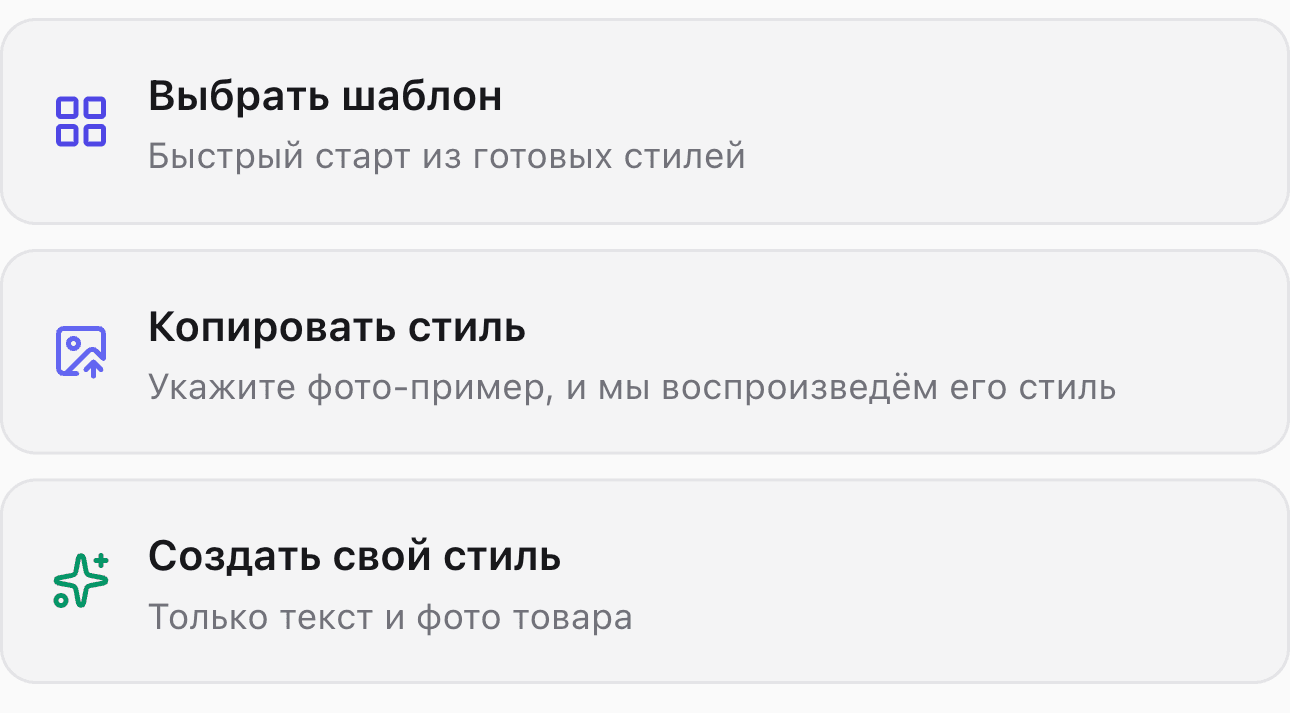
In brief: Template — fast and predictable, ideal for a first card. Reference — when you already have an image you like. Custom prompt — when you need maximum flexibility and know exactly what you want. More detail on each below.
Template
A ready-made library of presets organized by category: catalogue photo, scene, flatlay, infographic with text, product in hand, and more. Click one and you're done. No additional configuration needed.
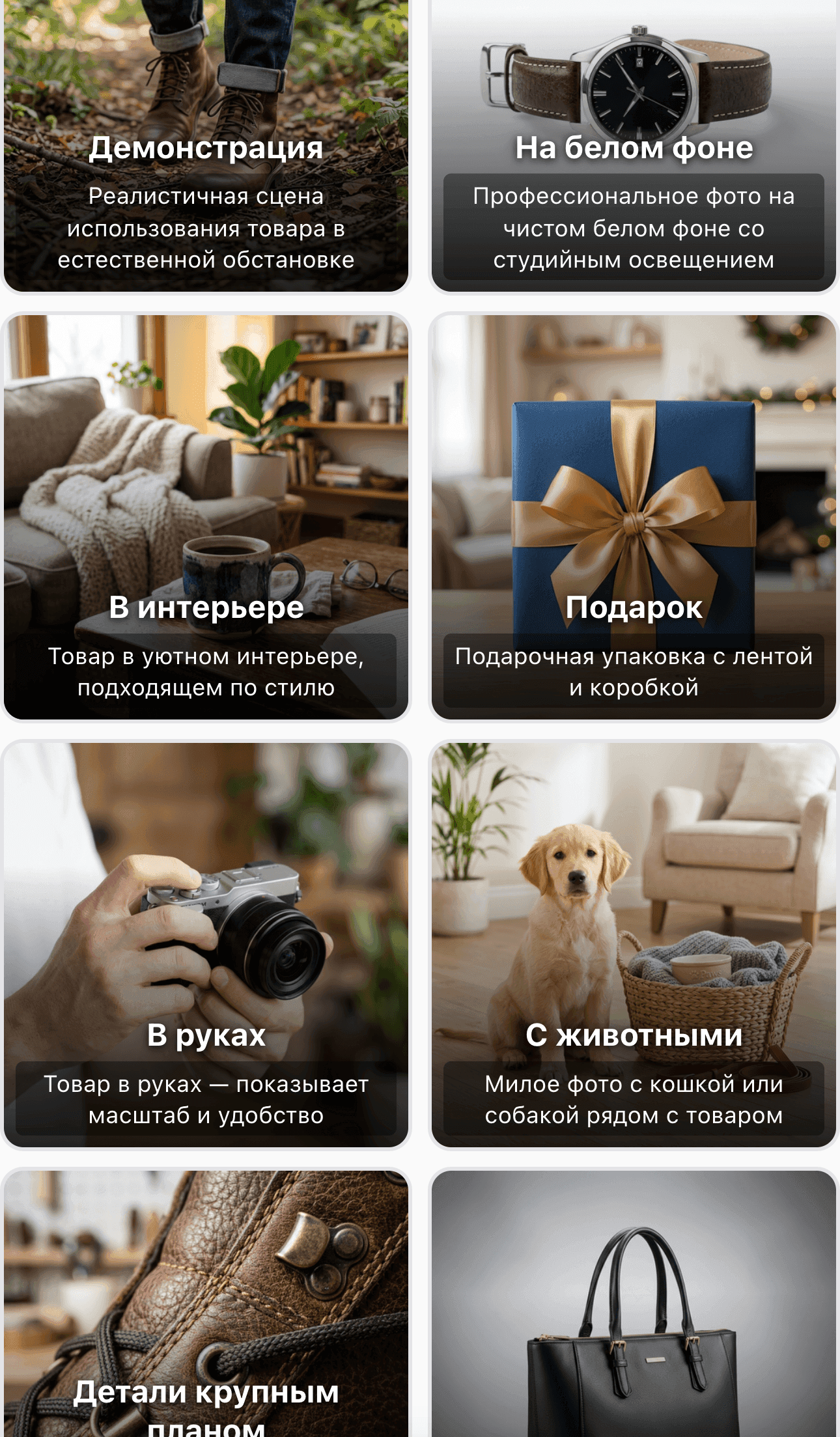
The template also determines how many product photos are used — from one to six depending on the layout. Most templates work with a single product photo.
Templates now behave more predictably: each template explicitly "owns" the design aspects it defines (e.g. "On white background" owns the background, "Benefits and USPs" owns the infographic composition). Those aspects are not overridden by the automatic style direction — pick a template and you get its core look in clean form.
When to use a template: first card, no time to experiment, you need a predictable result. Also good for quick category hypothesis testing — run a few different templates and compare outputs.
Reference
Upload an example image — a competitor's card you liked, a Pinterest screenshot, a catalog example, or one of your own past cards you want to replicate. The AI will copy the visual style: lighting, color palette, composition.
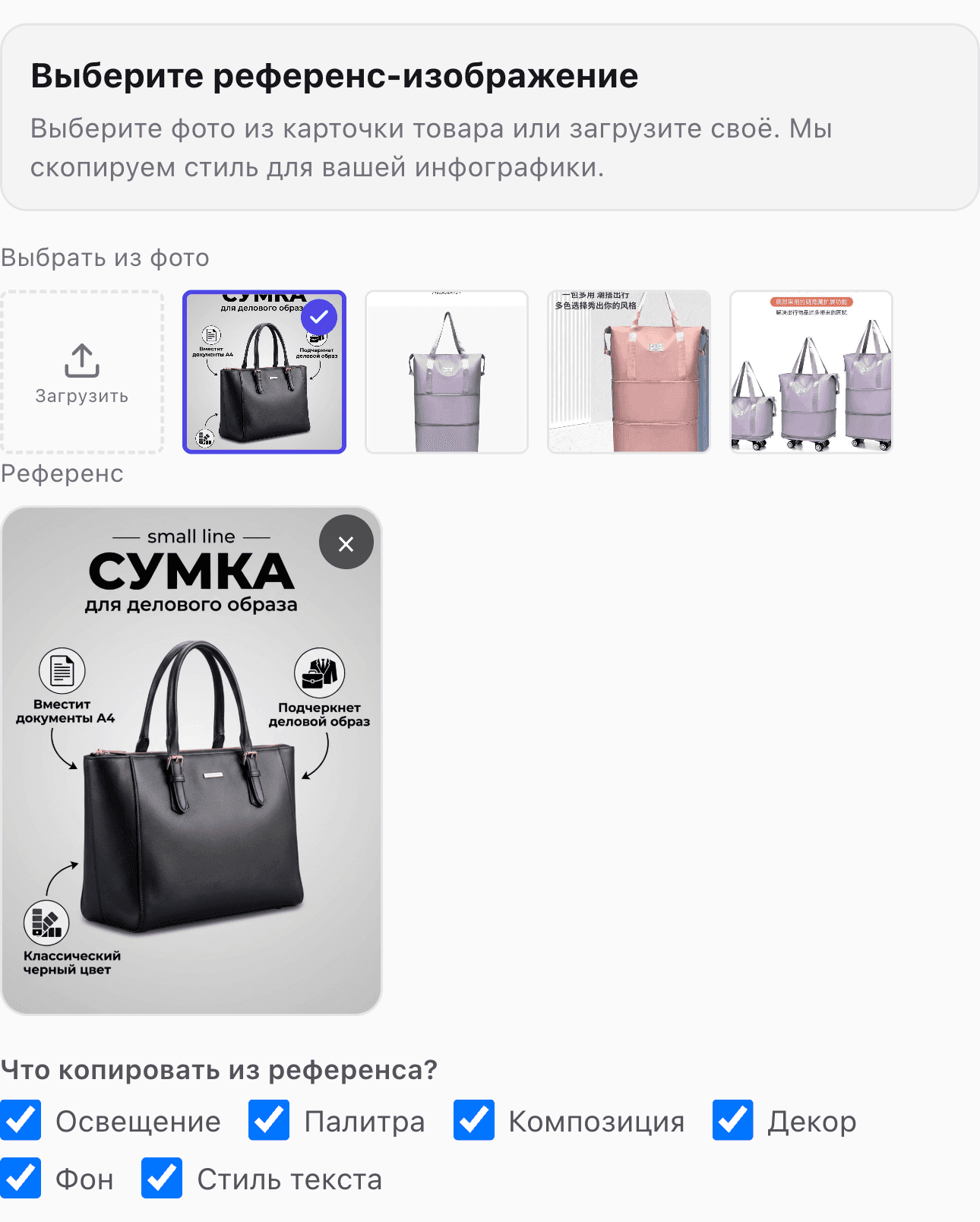
Next to the preview there are six checkboxes: lighting, palette, composition, props, background, text style. All are enabled by default. If the reference has an unusual background that you don't want to copy — uncheck "Background" and the AI will replicate everything else.
The actual product from the reference is not carried over — the AI takes only the visual treatment. For more detail on this approach, see Style Reference.
Custom prompt
Describe the style in free-form text. This can be a mood ("Japanese minimalism"), a technical description ("white background, soft shadows, top-down view at 30°"), or a reference to a familiar aesthetic ("looks like Wildberries product cards in the cookware category").
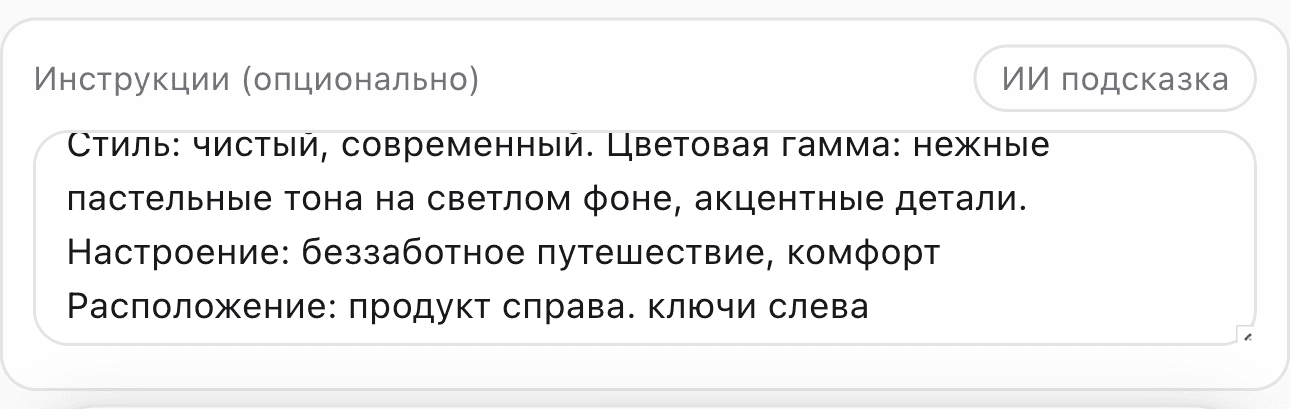
This is the most flexible option — the AI interprets your wording directly. But "make it look nice" won't work well: the more specific the description, the more accurate the result. Things that work well: colors, textures, light sources, photography or design styles.
Background
The card background is chosen separately from the template — the "Background" row in the "Parameters" block (in the simple wizard it sits inside "Style and settings"). Any background goes with any template: "Composition" on marble, "Indications" on a plain beige.
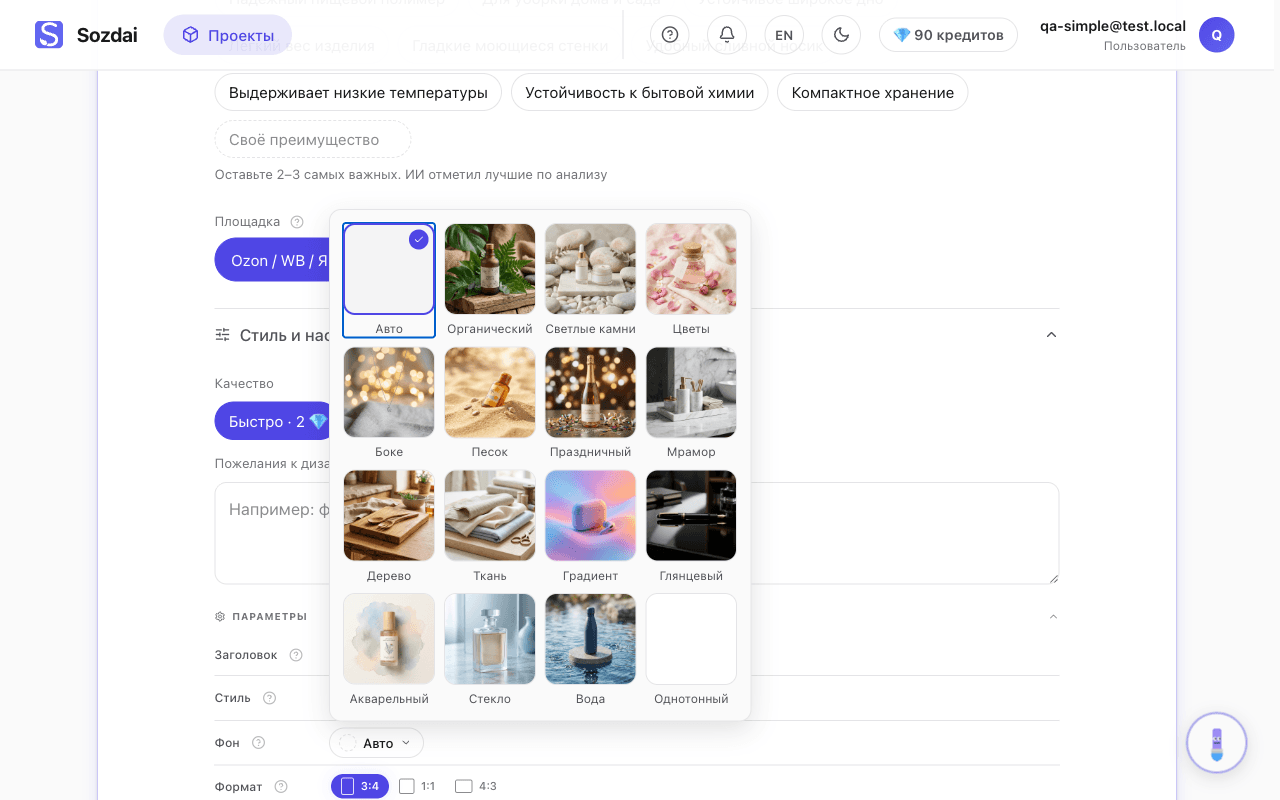
"Auto" is the previous behaviour: the AI invents a background to suit the product and the mood. Any other choice it no longer overrides — an explicit background outranks both the automatic style direction and the platform's own rules.
The catalogue has fifteen backgrounds: marble, wood, fabric, light stones, sand, flowers, bokeh, gradient, organic, festive, glossy, watercolor, glass, water and solid.
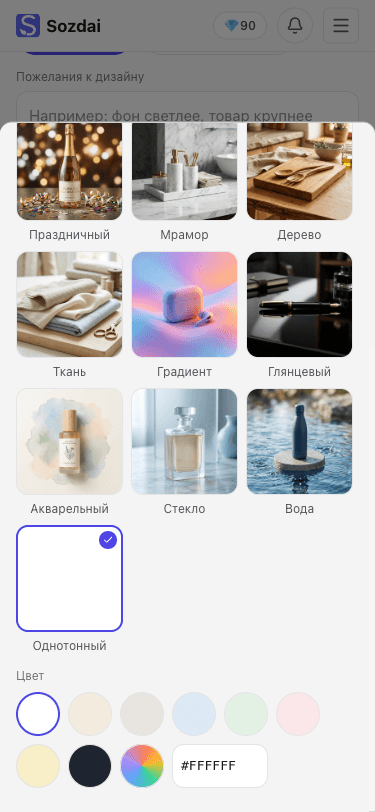
"Solid" is one flat colour with a soft contact shadow under the product. Picking it opens a palette under the grid: eight ready colours, a system colour picker and a field for a code like #F3EBDD (the hash is optional — F3EBDD works too). The colour reaches the AI both by name and by code — that way it holds the shade more precisely.
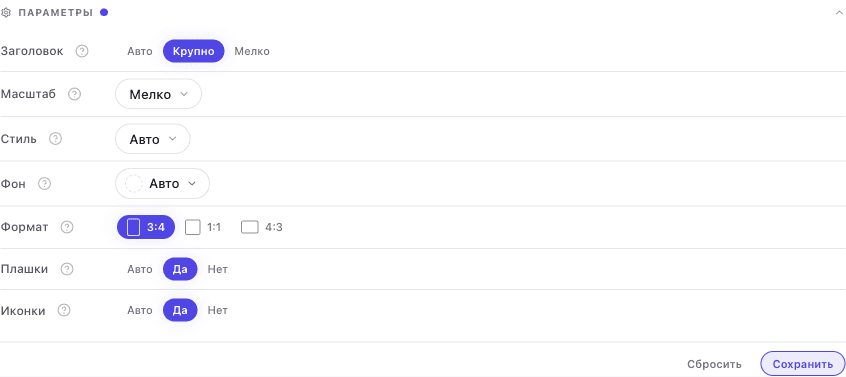
To avoid picking a background every time, press "Save" — the button appears at the bottom of the "Parameters" block as soon as you change anything, and makes the current choice the default for new cards. You can also change it in the profile, in the "Default background" field.
Three cases where the row behaves differently:
- Services. There is no "Background" row: a service photo shows real work, equipment or a specialist, and replacing the surroundings with a synthetic scene is not allowed.
- Avito. "Watercolor" is not listed: a listing photo has to look like a real shot, not a painting.
- The template sets its own background. For scenes such as "On white" or "In an interior" the background is part of the template's idea. In the step-by-step wizard the row is then disabled with the hint "The template sets its own background".
Scale
The "Scale" row sits in the "Parameters" block right under "Headline" — both rows are about the photo's layout. It sets how much of the frame the product itself takes: Auto · Large · Medium · Small.
- Auto — the AI picks the size for the product and the template.
- Large — the product leads: it fills half to two-thirds of the frame, the text lives around it.
- Medium — product and text as equal partners, each in its own zone.
- Small — the text leads: a large headline and the feature list carry the layout, and the product sits along one edge at about a fifth of the frame, fully visible.
"Small" pays off when the text sells rather than the picture: specs and ingredients, indications and contraindications, service terms, what's in the box. It works with any template and any background.
Like the background, the choice is remembered by the "Save" button at the bottom of "Parameters" and by the same field in the profile ("Default product scale").
For a product on Avito, if the profile is set to "Auto", the row switches to "Large" by itself — a platform default, like the 4:3 format. An explicit choice in the profile or in the row wins, and the substitution doesn't count as a change: it doesn't bring up "Save" or "Reset".
Two cases where the row behaves differently:
- The template sets the layout itself. For "Size chart", "Ingredients", "What's in the box", "Instructions" and "Close-up" the composition is part of the template's intent. In the step-by-step wizard the row is then disabled with the hint "Set by the template".
- Reference. If you uploaded a reference image, it dictates the composition: the size from this row is not applied in that generation.
If you chose reference, see Style Reference for details on the checkboxes and examples. For custom instructions on the "Text" step, see Step-by-step Card Generation.