 Sozdai
Adding a Product
You can create a project in two ways: paste a URL from a supplier's website or upload your own photos. The AI handles the rest — parsing the data, identifying the category, and filling in the specifications.
From a supplier URL
If your product is listed on Sima-Land, Gala-Centre, or another major wholesale supplier — paste the URL directly into the import field. The AI will fetch the photos, title and description on its own.
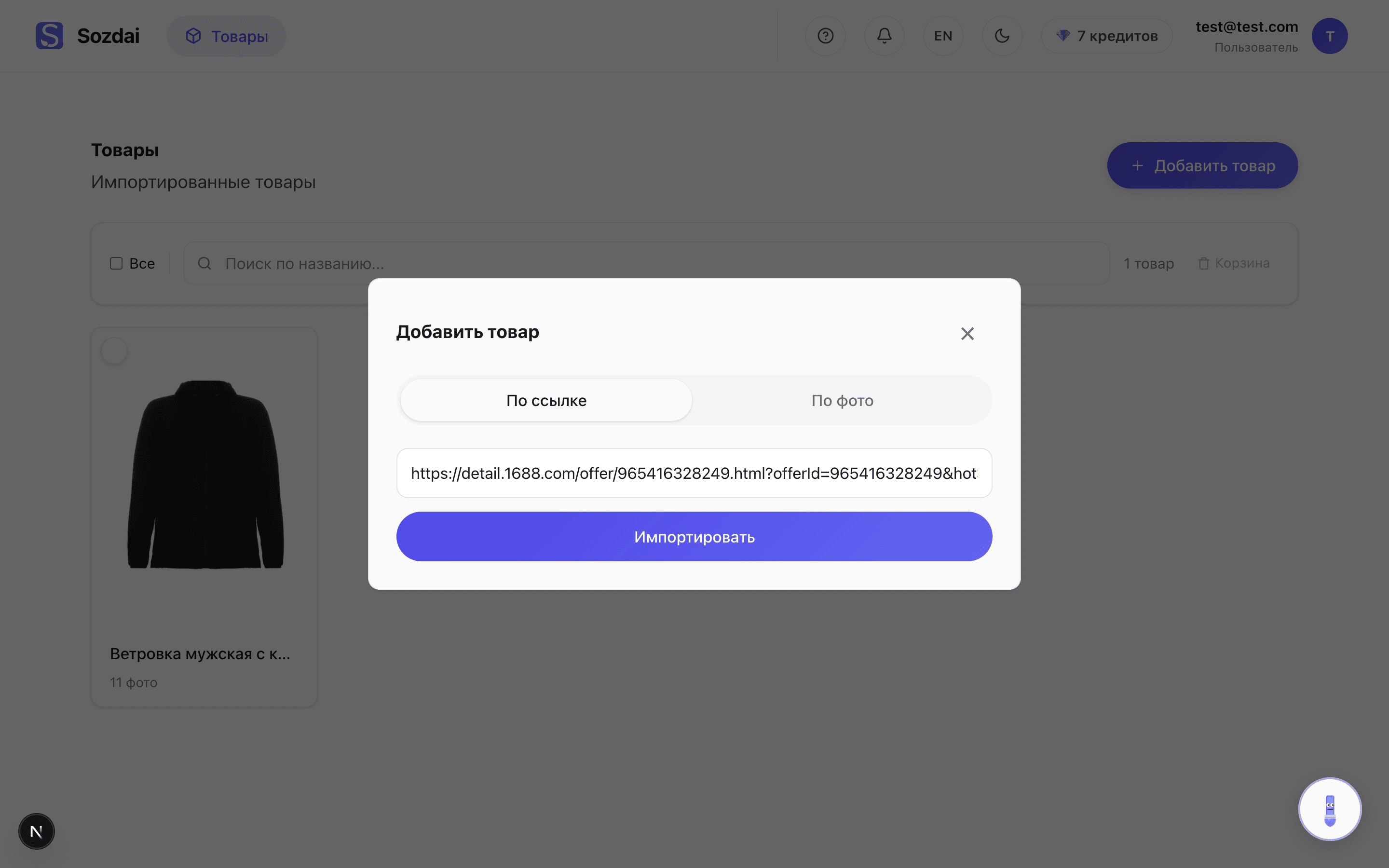
What's supported: Sima-Land, Gala-Centre, major Chinese wholesale suppliers (Alibaba and equivalents). On unfamiliar sites the parser may fail — in that case switch to the "Upload photos" method. Links from Wildberries or Ozon only work for viewing your own listings, not for import.
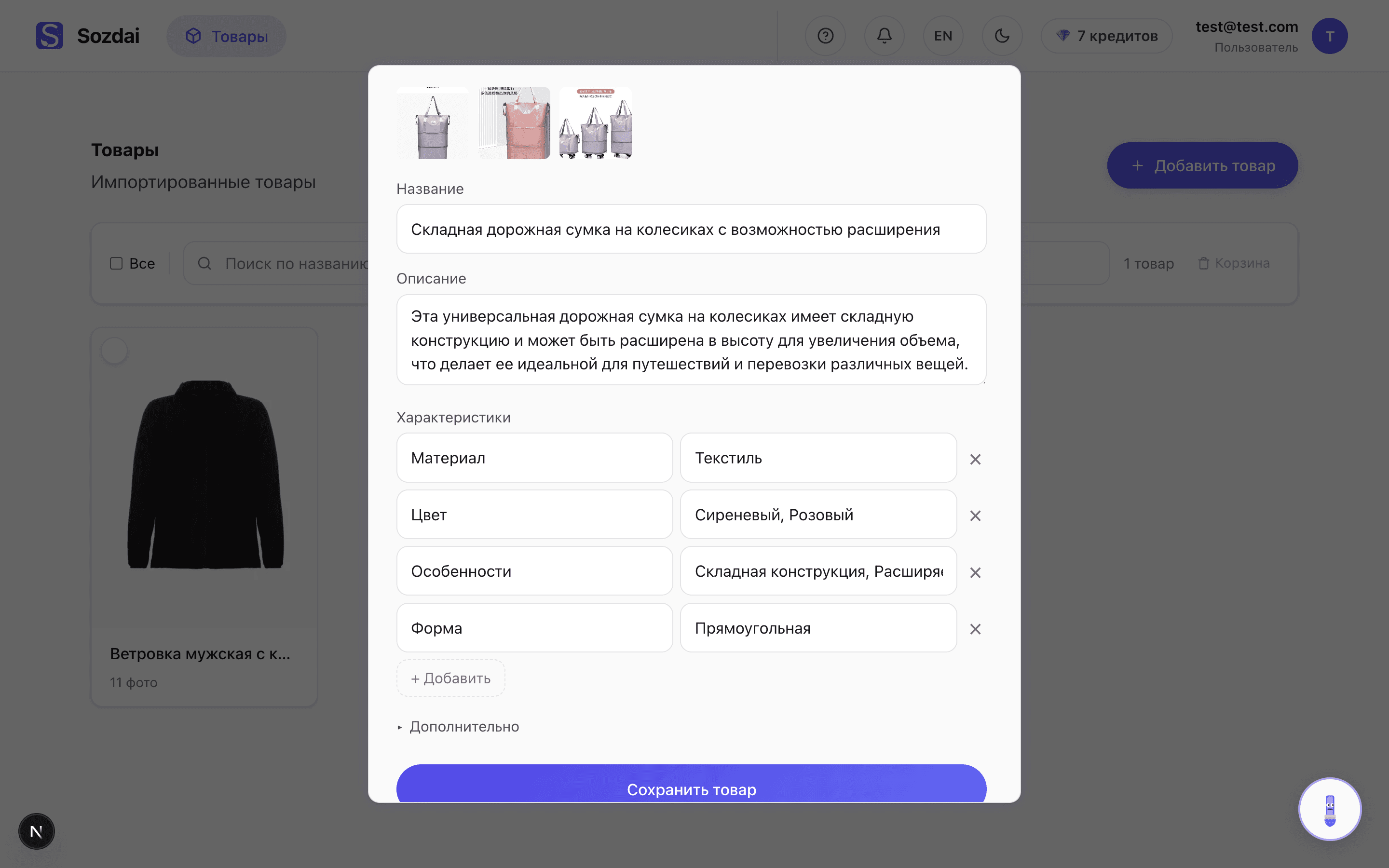
Upside: almost nothing to enter manually. The AI downloads 3-5 photos and fills in all fields. Downside: not all sites are supported, and even well-known platforms occasionally change their page structure in ways that trip up the parser.
Upload photos
If the URL didn't work or you already have your own product shots — upload photos directly. Any JPG or PNG works; a clean or white background gives the best analysis results.
Minimum is one photo, maximum is 20 per upload. Above the thumbnails you'll see a counter «N of 20 uploaded». You don't need to upload every angle right now: more photos can be added later on the product page, and unwanted ones can be deleted. There's a hint under the upload zone reminding you of this — no need to panic about the limit.
For the first upload, 2-3 different angles is recommended — front, back, close-up details. The more varied the photos, the more accurately the AI identifies the product and the more feature statements it extracts. The rest can be added later — they'll attach to the existing analysis.
This method is ideal when the product isn't sold online by any supplier, or when you already have a professional photo shoot that you want to use.
While the analysis runs
Once the photos are uploaded or the URL is submitted, the AI starts analyzing — usually 10-30 seconds. Progress is shown right on screen.
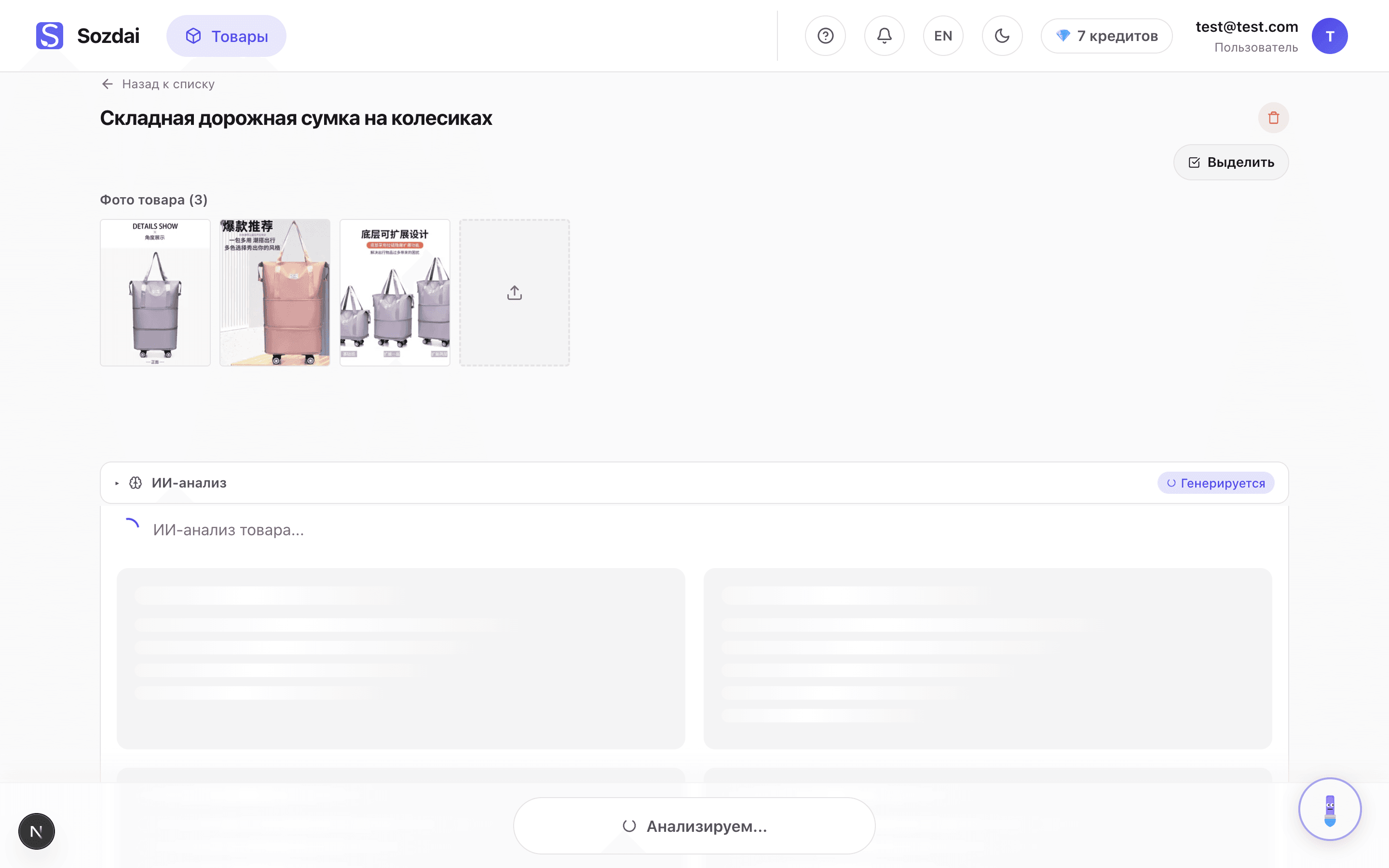
You can keep adding photos while the AI is working. In the preview there's a «+» tile at the end of the thumbnail strip — tap it to pick more files. Drag-and-drop also works. Recognition doesn't restart; the new photos just join the upload. Useful when you remember an extra angle after starting.
You don't have to wait. Close the tab and do something else — the analysis continues on the server. When you come back, the results will be ready. A Telegram notification arrives if the bot is connected.
If something went wrong
The two most common situations:
- URL won't parse — an error message appears. Copy the link to the specific product page (not a category page), try again, or switch to photo upload.
- Too few photos or low quality — the AI will still try, but the specifications may be imprecise. Add photos from different angles or replace them with sharper shots.
If the analysis seems stuck for several minutes — refresh the page. The product will appear in the list with a status of "Ready" or "Error".
How to delete a product
The product page has a delete button (with confirmation). In “My projects” you can select several products and delete them at once. Deletion is permanent — the product's photos and generated cards disappear with it, so download the results you need first.
Next up: understanding what the AI collected — Product Analysis Results. For the full generation flow from start to finish, see Step-by-step Card Generation.