 Sozdai
Editing the Analysis
The AI sometimes gets things wrong — every field in the analysis can be corrected manually, for free, with no credits spent.
Edit an existing statement
Any statement in the list can be changed right on the page. Click on it — the line becomes an input field. Edit the text and press Enter to save. Press Escape to cancel without saving.
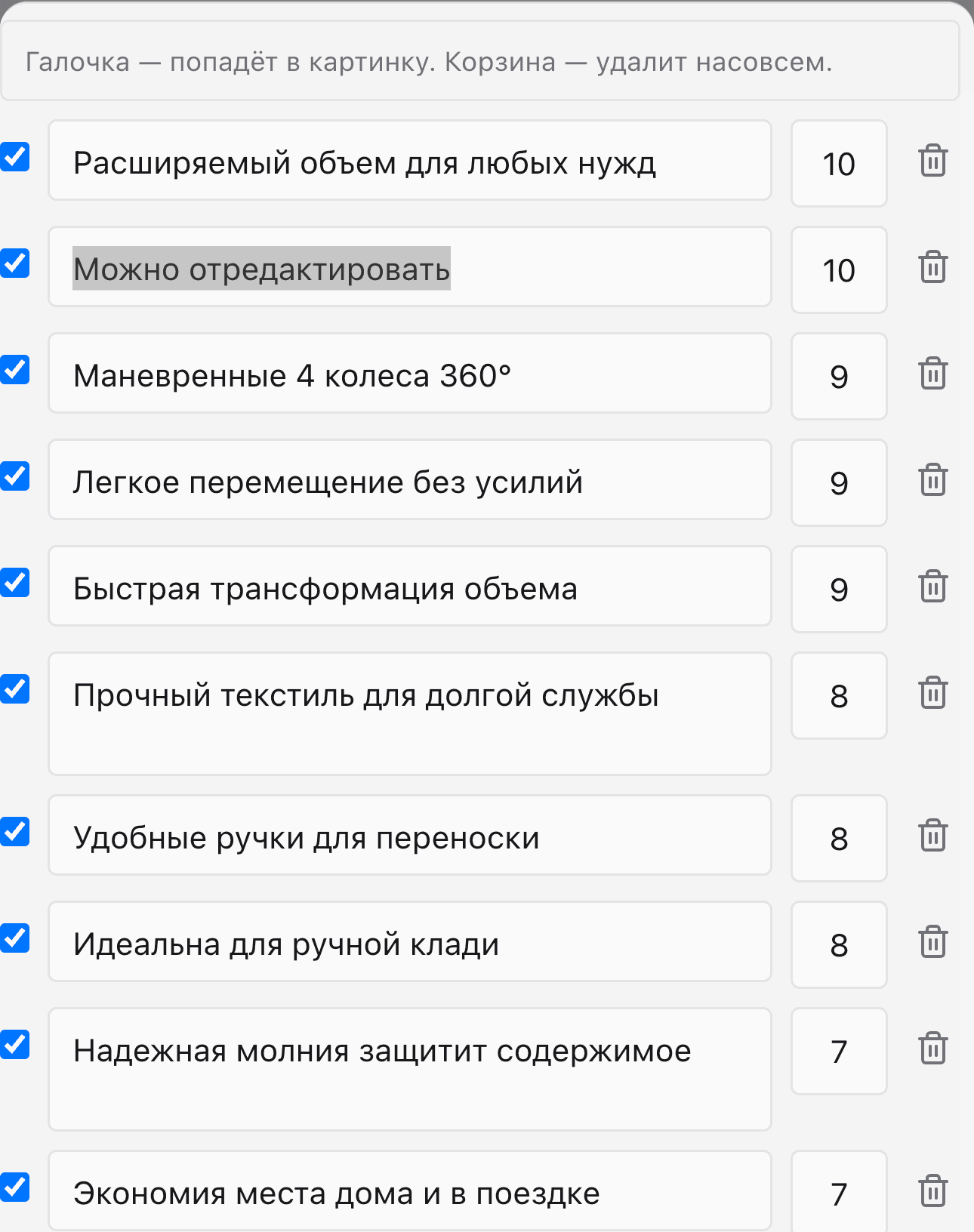
Editing is free — no credits are deducted. Changes are saved immediately and will be used in the next card generation. Specifications (key-value pairs) work exactly the same way.
Add your own statement
If the AI missed something important — add a statement yourself. At the bottom of the "Key Statements" list there's an "+ Add" button. Click it, type your text, and save.
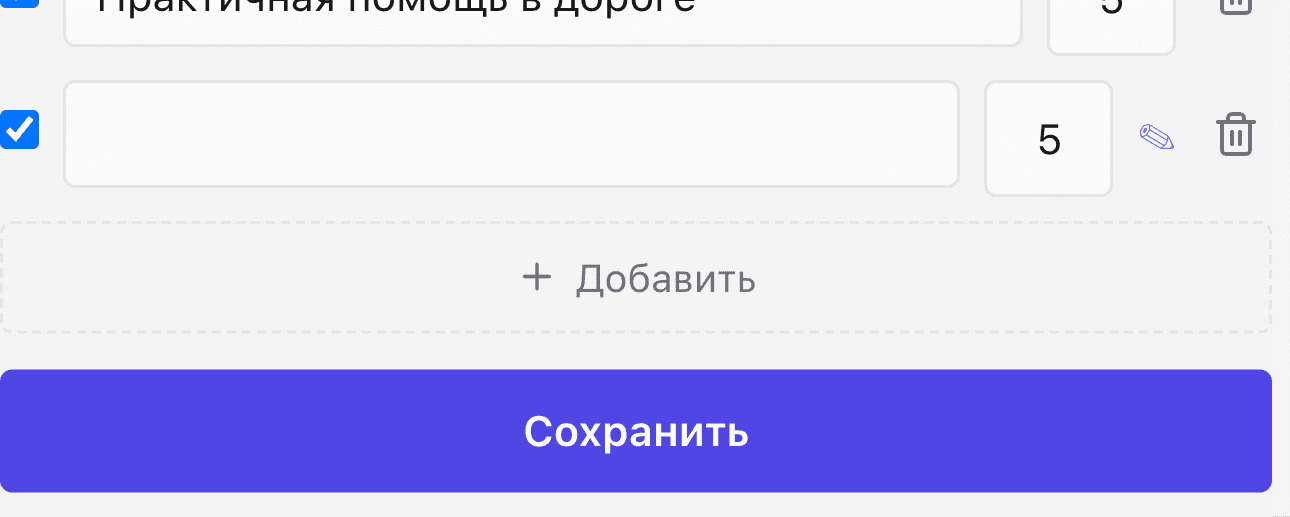
Custom statements are flagged in the list and will be pre-selected by default at the "Text" step when creating a card — so they're guaranteed to appear on the card if you added them intentionally.
Regenerate a block
Each block has a refresh icon button beside it. Click it to have the AI rebuild the entire block from scratch based on the uploaded photos. Takes 5-10 seconds and costs no credits.

Important: regenerating erases all your manual edits in that block. The AI has no record of what you wanted to keep. Use this button only when the original result was clearly wrong — for example, the AI clearly identified the product as something else entirely. If the block is mostly fine but a few items are missing, adding them manually is safer.
Additional data
Some templates ask for data that has no regular analysis block: indications for use, a price list with units. Those values live in the "Additional data" section at the bottom of the analysis — one block per template, with a label and an "Edit" button.
They are filled in automatically when you pick the matching template in the generator; here you can correct them any time. Editing is free and lands in the next generation — like every other analysis block.
For a service
A service has six blocks: “Key statements”, “How we work”, “Us vs a typical provider”, “Target audience”, “Promotion tips”, “SEO block”. On desktop all of them are editable; on the phone the first three (the rest can be regenerated). The AI infers “How we work” and “Us vs a typical provider” from the description, so fill them with your real steps and differences — they feed the photos made with the “How we work” and “Us vs a typical provider” templates.
Keep in mind: edits to the analysis only affect future card generations. Cards that have already been created are not updated automatically. To apply your changes to an existing card, click "Create again" in the wizard.
To review the analysis without editing — Product Analysis Results. To move on to creating a card — Step-by-step Card Generation.