 Sozdai
Getting Started
Sozdai turns photos of products you source from a supplier into selling cards for Wildberries, Ozon, and other marketplaces. Instead of hours in Photoshop — a couple of minutes to generate and tweak.
This article covers the minimum needed to get your first card in one session.
What you'll need
- A Sozdai account (sign up with email, Yandex ID, or VK ID).
- 1-2 product photos on a clean or white background — or a URL to the product page on your supplier's site (Sima-Land, Gala-Centre, Alibaba, etc.).
- 10 💎 free (granted automatically on sign-up). Images made with them carry a sozdai.app watermark that disappears from all your images after any payment. Details — Credits.
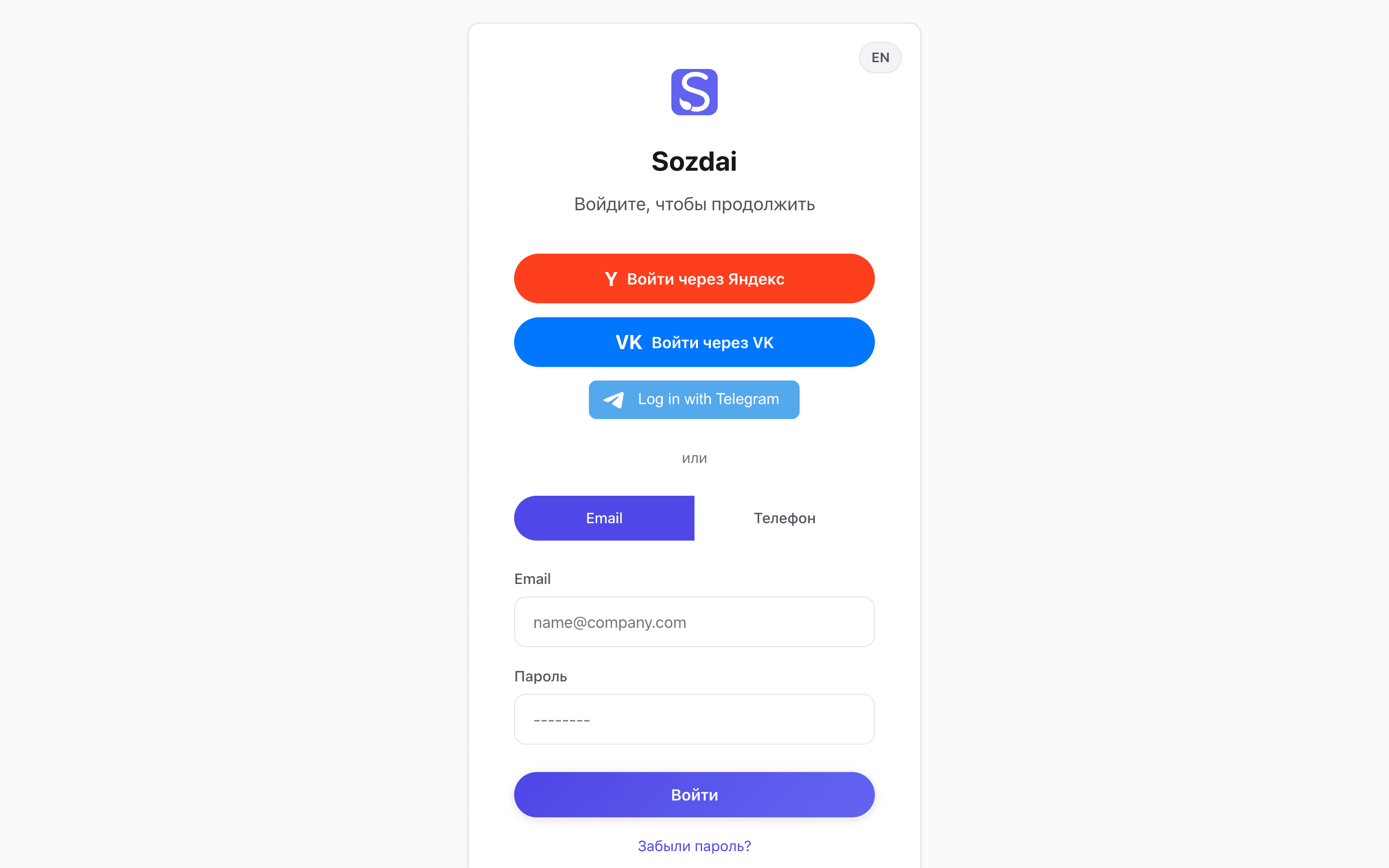
Step 1. Create a project
After signing in, open "Projects" — it is the first item in the left sidebar (on a phone — in the bottom bar). If you just registered — the list is empty. Click "Create" in the top-right, or go straight to "Card for WB · Ozon · YM" in the "Create" section of the sidebar (on a phone — the "+" button at the bottom, then "What do you want to create?"): the add-product window opens right away.
The sidebar is laid out like this:
- "Projects" — the list of your projects. Below it are up to five recent projects with thumbnails (the one you have open is highlighted), and "All projects →" leads to the full list.
- "Create" — "Card for WB · Ozon · YM"; if these features are available to you — "Photo funnel", "Rich content" and "Video"; if listing mode is on for you — "Avito listing — product", "Avito listing — service" and "Avito profile banner". A click on a card or a listing opens the add window right away, with no pages in between. "Photo funnel", "Rich content" and "Video" work in place: inside an open WB / Ozon / YM product they open its tab right away; anywhere else — a "Which product is it for?" window with your recent products and a "New product" button. A new product opens right in the chosen section after upload, and Sozdai studies it first — usually 10–30 seconds.
- "Tools" — what works without a project: "Convert to 3:4".
- "Plans" — at the bottom of the panel.
You can collapse the panel to icons: then "+" opens a short list of the "Create" items. Theme and language are in the avatar menu.
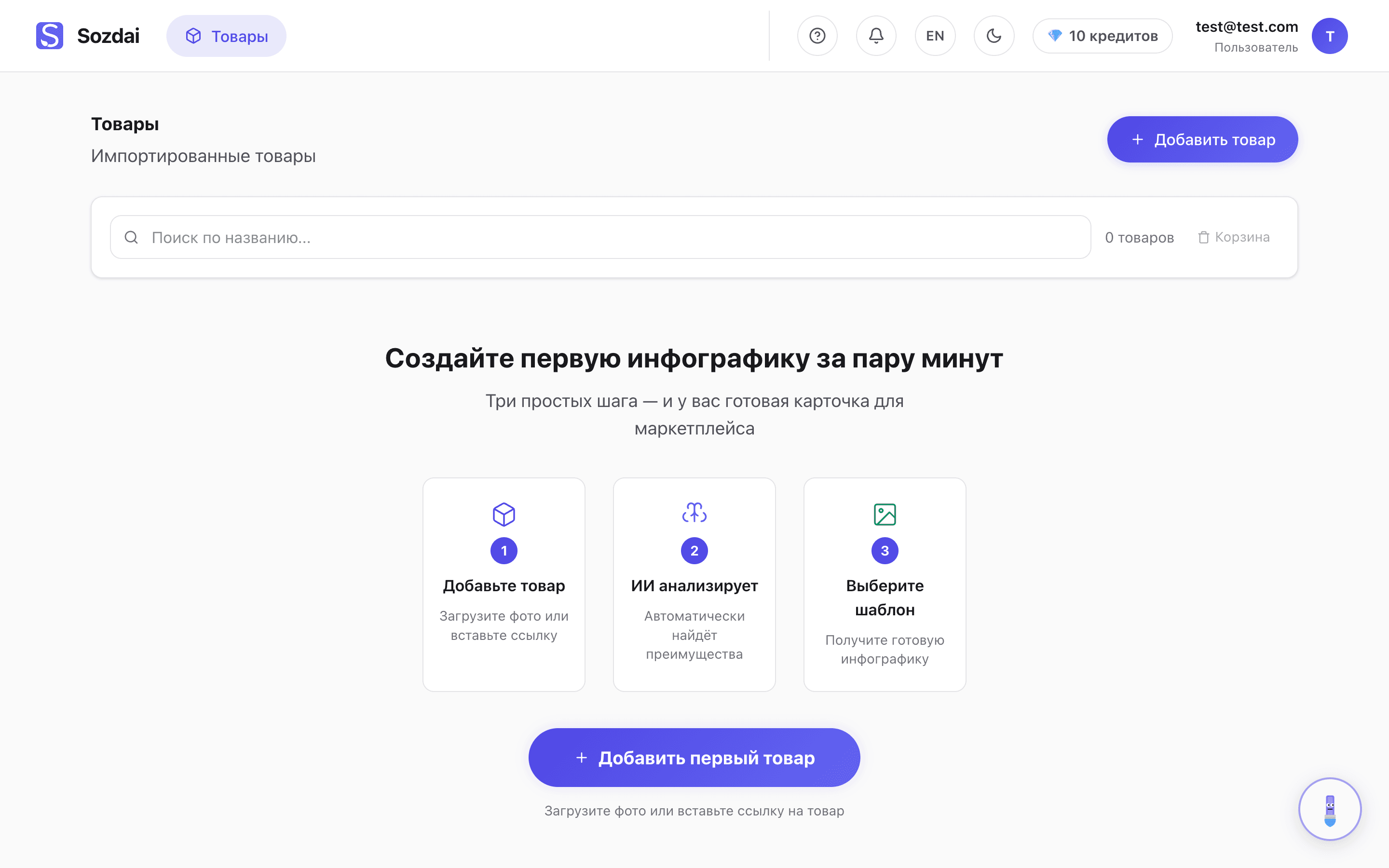
Two options:
- By link — paste a URL from a supplier page (Sima-Land, Gala-Centre, other wholesale platforms). AI parses the name, description, and downloads photos.
- By photo — upload your own files. AI detects what the product is and fills in the specs — you just confirm or tweak. Also quick.
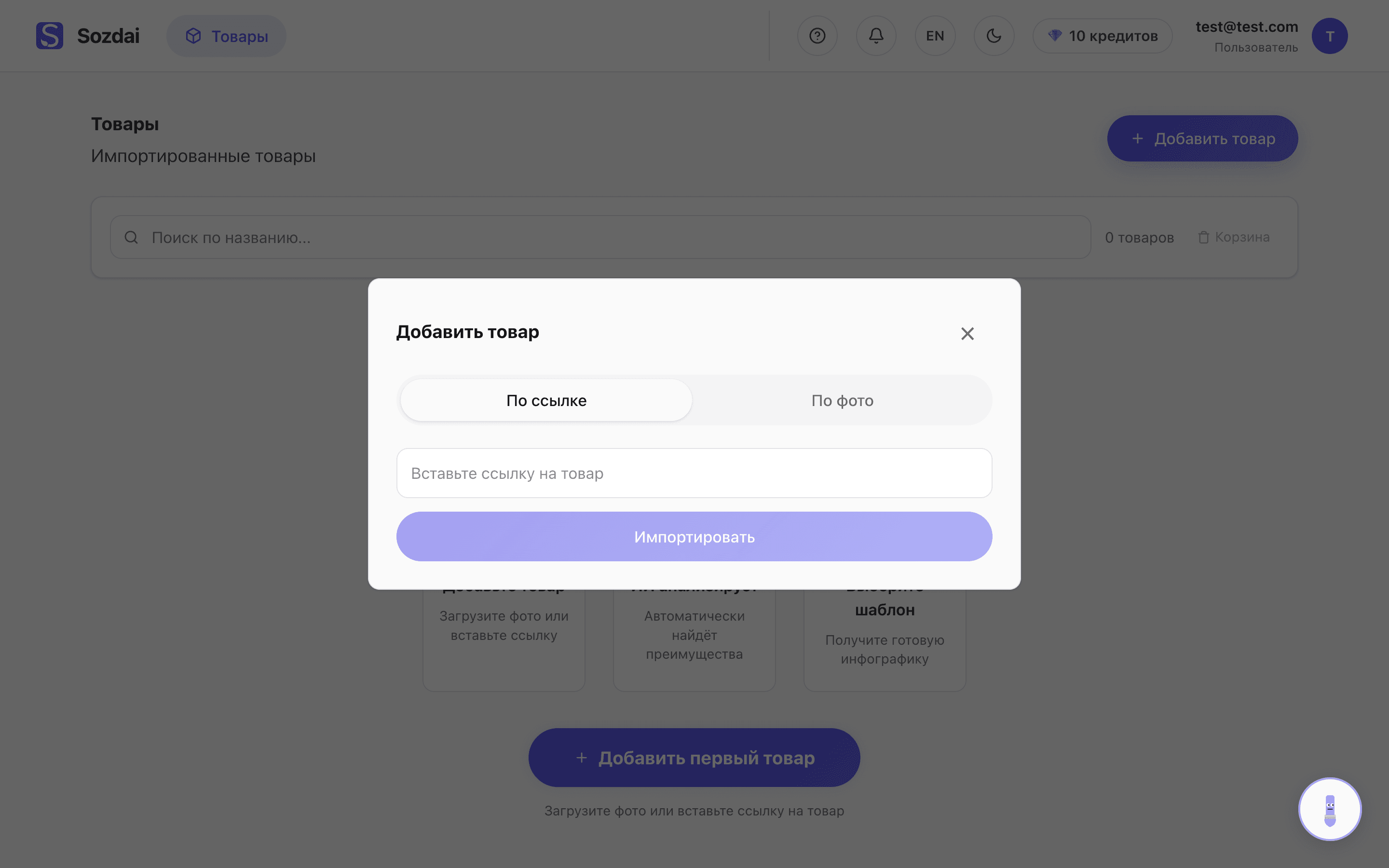
Step 2. Wait for the analysis
After upload, AI analyses the photos and fills in the description: key statements and product specifications. This takes 10-30 seconds.
When ready — you'll see the "Bullets" block (short statements for the card) and "Key characteristics"; below them comes the extended analysis: "Review analytics", "Objections and answers", "Sales recommendations" and more. This is the foundation for card generation. The card headline comes later, during the generation step — there'll be three optional lines (an overline, a main headline, and a subheading). AI proposes a variant (the main headline and a subheading; an overline only rarely), you keep or rewrite.
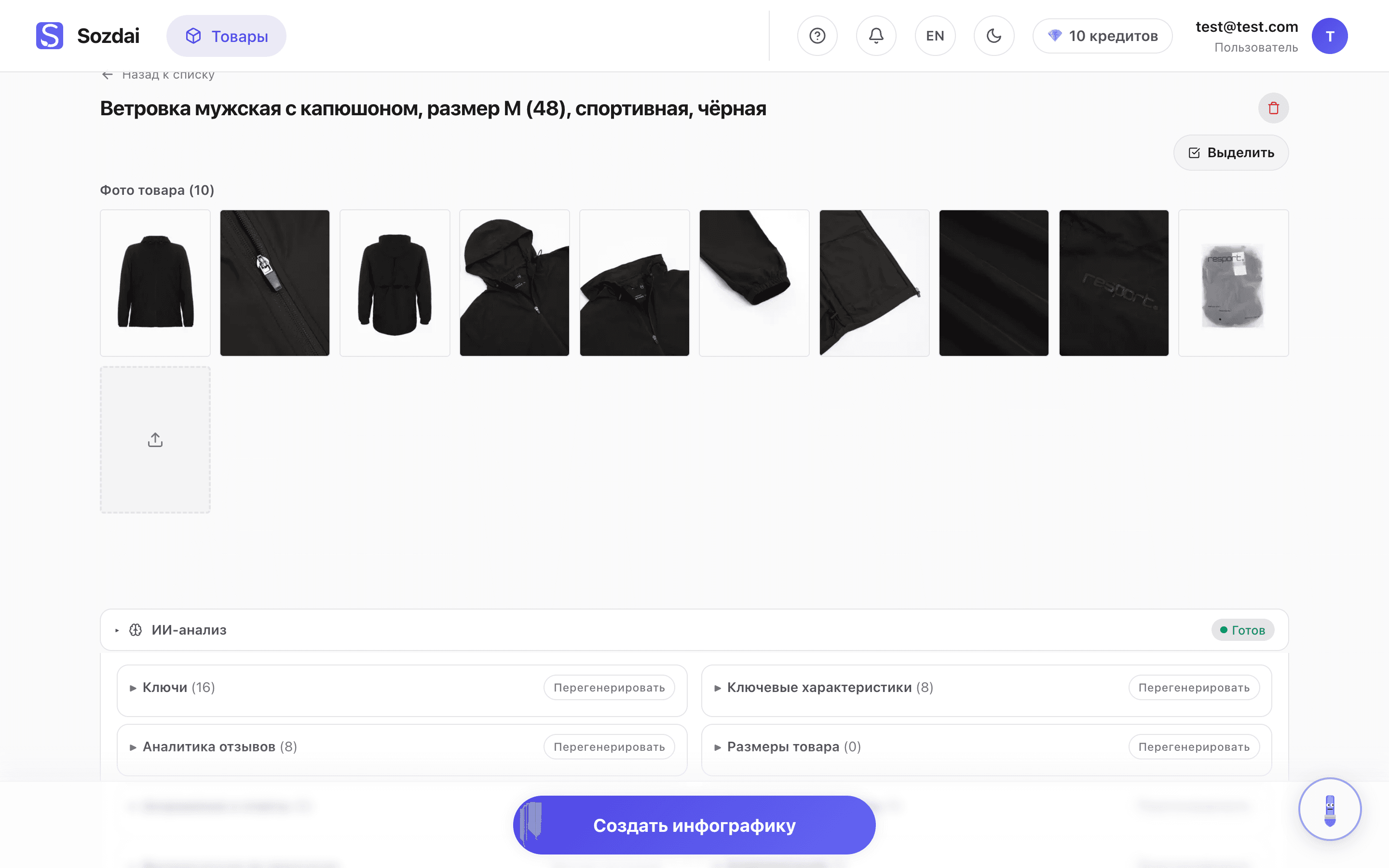
You can leave everything as-is and hit "Create infographic" — AI will use this data directly. Or edit any field (useful when AI missed a detail).
Project tabs
Every project has a "Photos" tab: the analysis, the photos and card creation. If extra features are available to you, a tab strip appears above the content: "Photo funnel", "Rich content" and "Video". If only "Photos" is available, there is no tab strip.
At the top of the "Photo funnel" tab are your finished photo funnels: the latest one is expanded, photos open full size, and "Download all" saves them as an archive; the others are under the "N more photo funnels" button. Below is "New photo funnel": pick a sample photo and the rest of the card's photos are made in its style. Any photo of the product can be the sample — one made in Sozdai or one you uploaded, for example a finished infographic made elsewhere; then the new photos are made from your other product photos, and the quality comes from the "Default quality" setting in your profile. Until the product has any photos, the tab offers to make the first one.
What's next
The next step is the generation itself. For a detailed walk-through of all four wizard steps — see Step-by-step card generation. If you see the simple wizard (one screen and a “Make the card” button), read Simple wizard.
If something went wrong — check the FAQ or message us via the contact form.