 Sozdai
Refine with Text: How to Write Effective Prompts
Refine is the main tool for making targeted edits to a generated card. You describe one change in text, and the AI applies it to the current image. How accurately it understands what you want depends almost entirely on how you phrase the request.
Where to find it
After a successful generation, the refine input appears directly below the card alongside the "Fix (2💎)" button. It works the same way in the step-by-step wizard (step 4) and in Pro mode. Even simpler — ask the AI assistant right in the chat: type "translate the text to Russian", it will show a confirmation with the price and apply the tweak to the latest card itself.
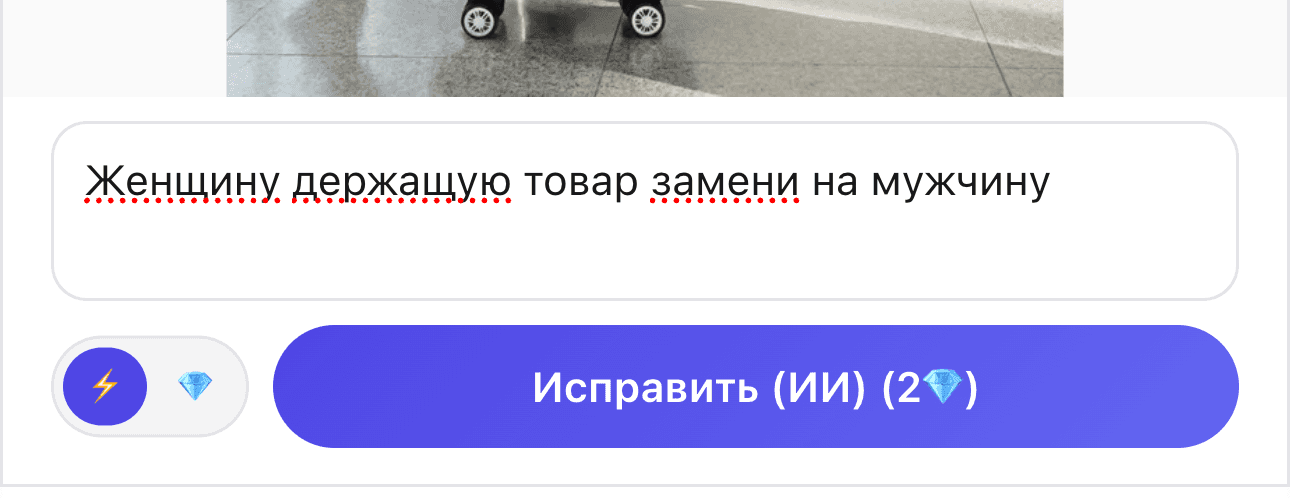
Your text and the current card are sent to the AI together as a new request. For a product card, the original product photos it was made from are sent too: the AI checks the shape, colors and details against them so the product doesn't drift from one refine to the next. The AI tries to preserve as much of the current result as possible and change only what you described. Each refine costs 2💎 (Flash). You can chain them: each new request builds on the result of the previous one.
You can dictate
There is a microphone button on the right of the field. Tap it, say what to change and why, then tap it again — the text appears in the field in a couple of seconds. Filler words and stumbles are removed; your meaning stays as is. You can edit the text before sending. Transcription is free — credits are spent only on the edit itself; up to 90 seconds per take.
Speaking makes it easy to explain in detail, and a detailed request ("make the top headline bigger, it's unreadable on a phone") works better than a short command ("make it bigger").
A good prompt: one element, one action
The most reliable formula is to name a specific element of the card and say what to do with it.
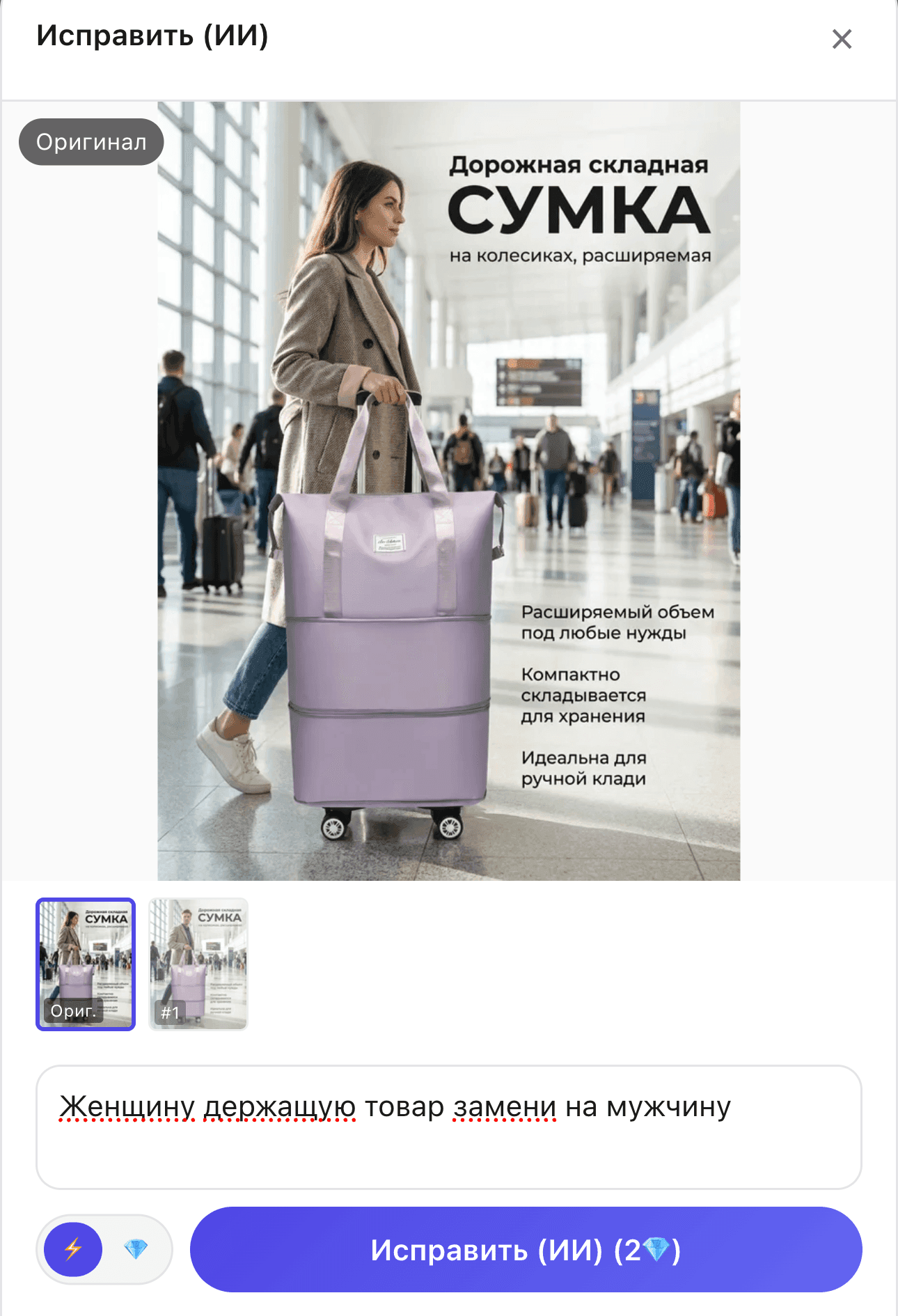
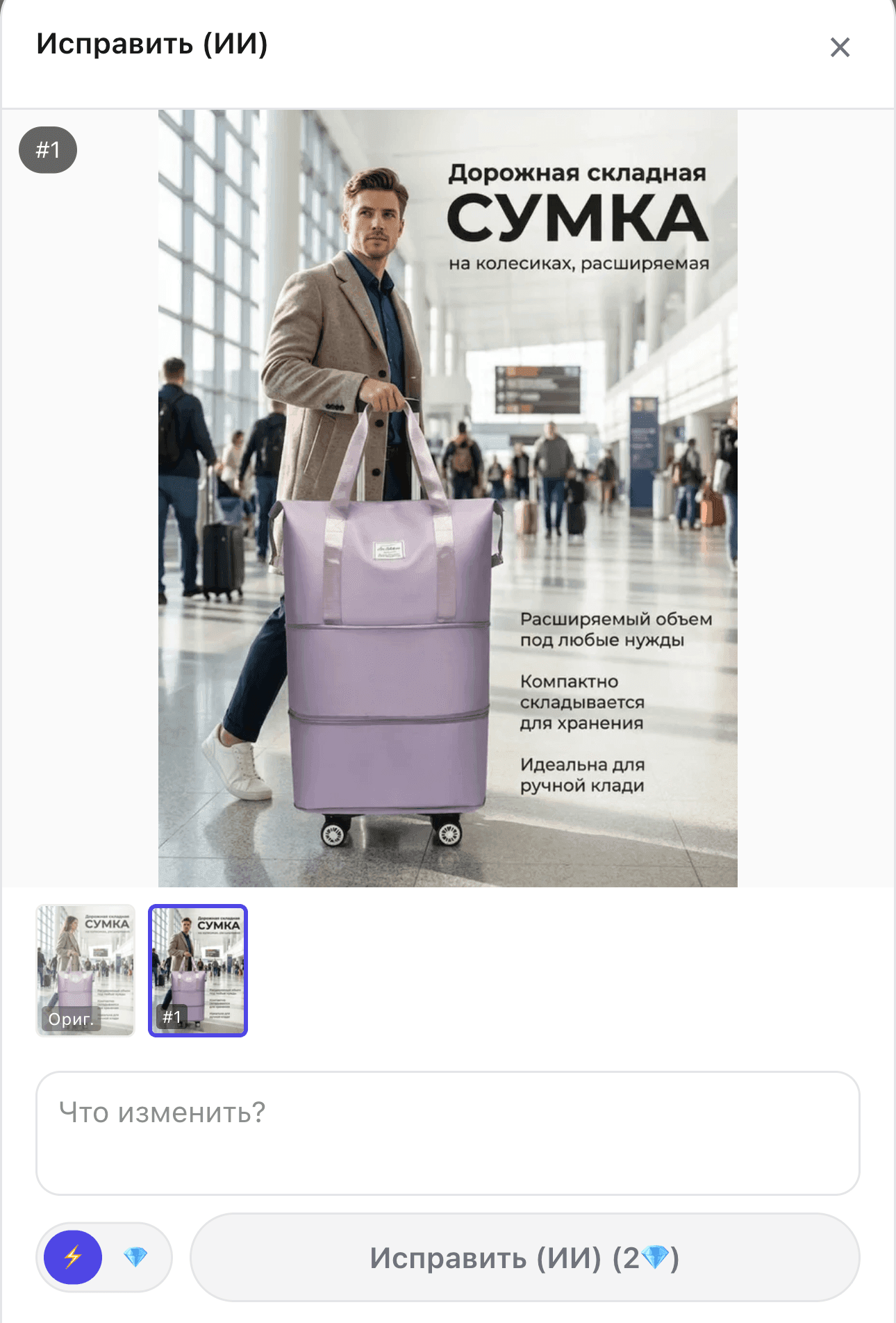
These two screenshots show how a specific prompt changes a targeted element without touching the rest of the composition. Everything else — background, product placement, feature text — stays intact.
Good examples that work well:
- "Move the logo to the top right corner"
- "Make the background soft blue instead of grey"
- "Remove the text at the bottom of the card"
- "Replace the packaging with a larger box"
- "Make the main headline font bigger"
The underlying principles:
- Name the specific element — not "that thing" but "the logo" / "the QR code" / "the headline" / "the background".
- Name the specific action — not "improve" but "move" / "remove" / "replace" / "recolor".
- One element per refine — if you have five changes, make five separate refine requests. Or, if the list is long, consider whether regenerating from scratch might be faster.
A bad prompt: ambiguity
Here's a real example. The prompt: "Make it bigger".
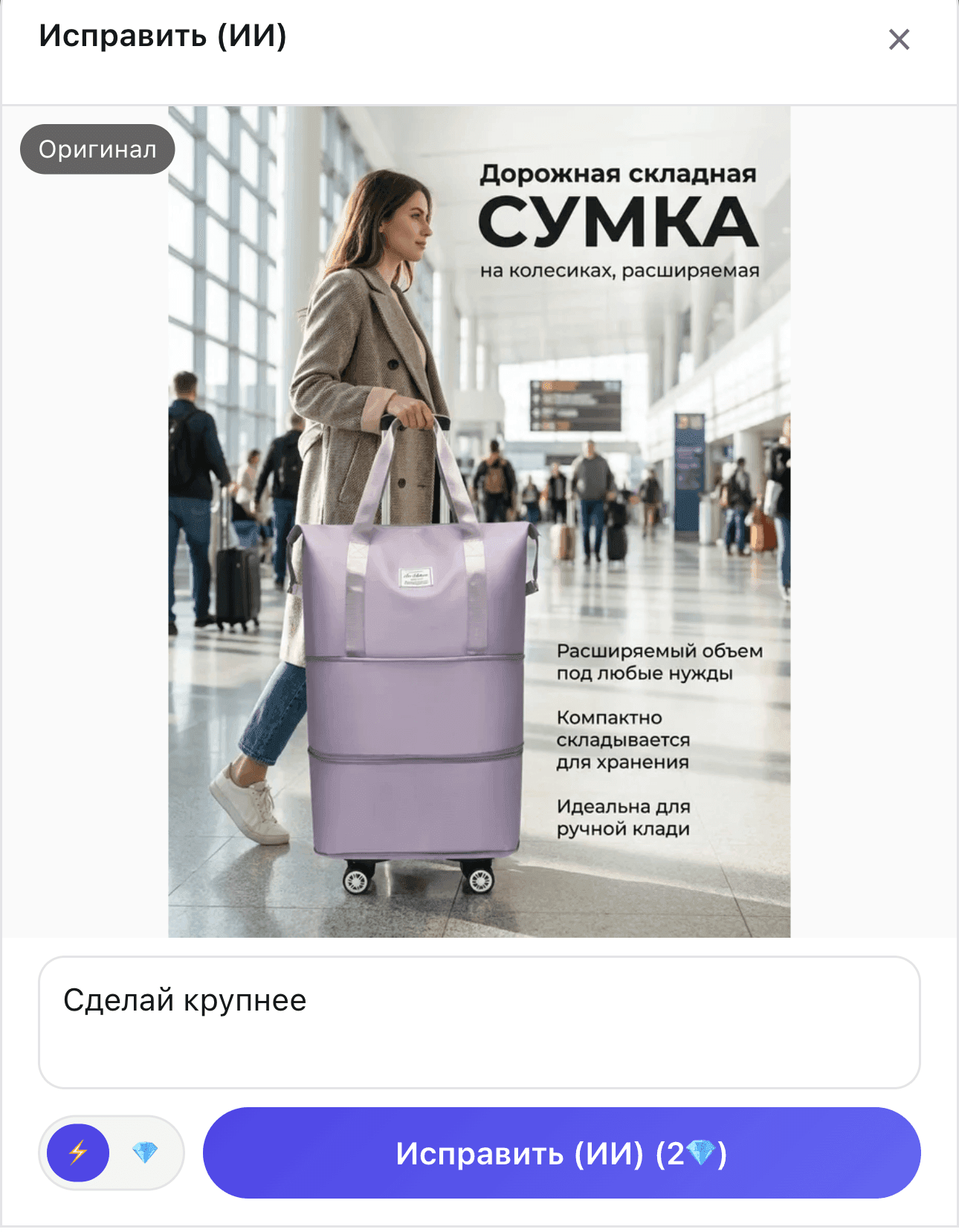
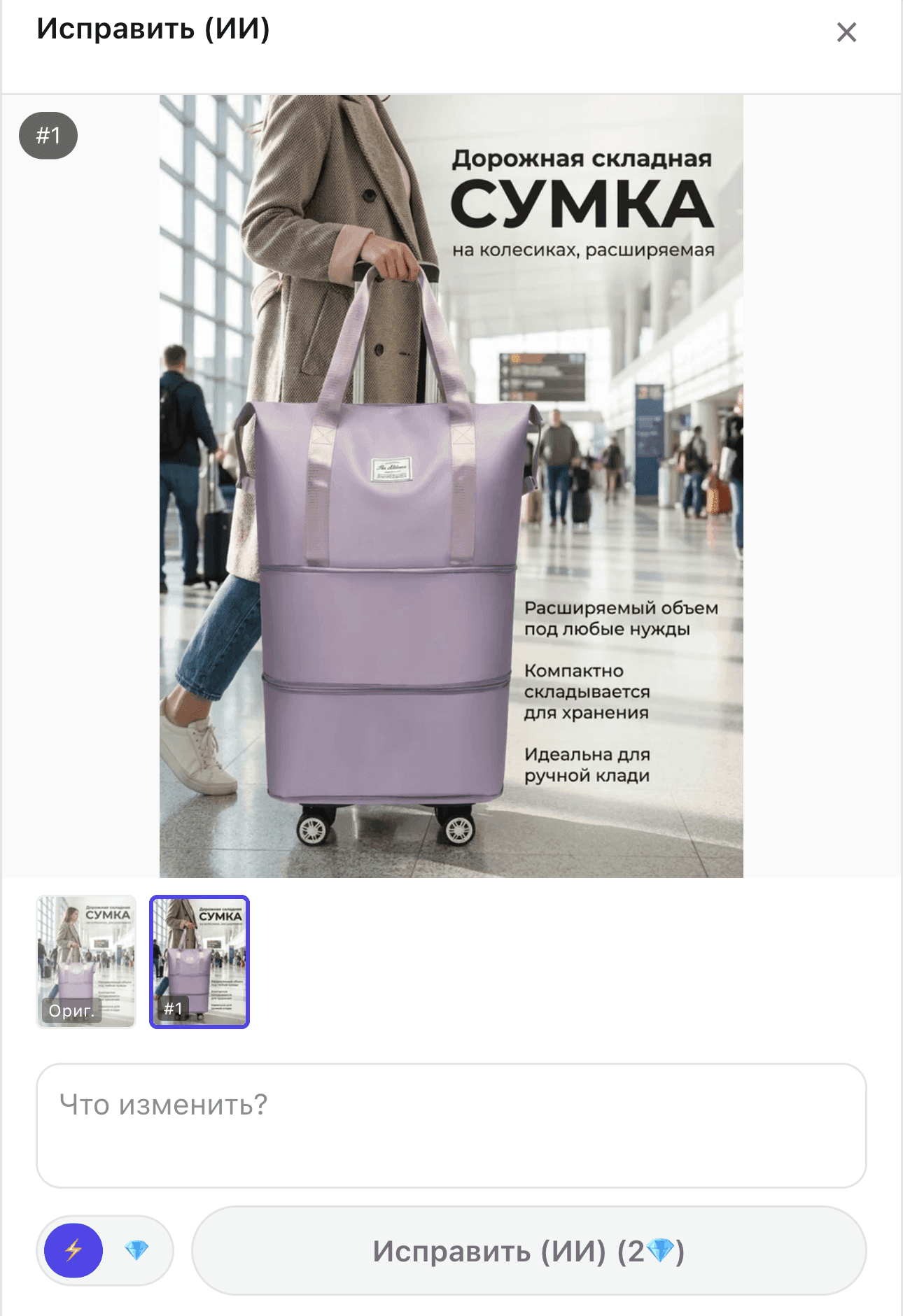
What the user meant: make the main headline font bigger, because the text on the card is hard to read.
What the AI understood: make the product larger in the composition. The product now takes up more space on the card, and the headline font stayed the same size.
This isn't a mistake on the AI's part. It has no business context — it doesn't know you're selling on a marketplace and worried about text readability. The AI sees the image and the word "bigger" and honestly tries to make something bigger.
How to fix this prompt: "Make the main headline font bigger" or "Increase the headline text size". Now it's unambiguous.
Other common ambiguities
| Vague | Specific |
|---|---|
| "Make it prettier" | "Add soft shadows under the product", "Center-align the text", "Soften the background" |
| "Improve the background" | "Replace the grey background with a white gradient" |
| "Fix the text" | "Remove the typo in the word XYZ" / "Replace the headline with 'YYY'" |
| "Make it brighter" | "Add a bright accent color to the button", "Increase the product contrast" |
| "Make it bigger" | "Make the main headline font bigger" / "Enlarge the QR code at the bottom" |
When refine won't help
Refine handles targeted edits well, but there are changes where it isn't the right tool:
Switching styles entirely — if you want to go from a "catalog" template to a "lifestyle" one, it's better to go back to the wizard and choose a different template or reference photo. Refine won't restructure the whole concept.
Major layout overhaul — if you want to completely rearrange the composition to a different layout, refine will iterate around the edges and won't give a clean result. Better to change the settings and generate fresh.
Changing the frame format — refine redraws the current image and keeps its proportions, so such a request costs no credits. If you type "make it 4:3", "a square picture", "1280×960" and the like, a hint appears under the field — "A refine can't change the frame format" — with a "Make a new variant in 4:3 · N 💎" button: a new generation from the same brief in the format you need. On Avito, for 1:1 the hint reminds you of the free "4:3 · 1:1" toggle above the image: the square is already there. For a format that isn't available (16:9, for example) the hint says that 3:4, 1:1 and 4:3 are available. If such a refine is sent anyway (say, from the chat with the AI assistant), the server won't run it and charges nothing — it replies with an explanation. When "1:1" or "4:3" is part of the lettering on the card, just send the refine: text from the field goes through as usual even with the hint showing.
For these cases, see How to Edit a Generated Card — it covers all three paths.
Chaining refines
Each refine builds on the previous one. This is useful: you can work through small edits one by one, gradually getting to where you want.
A refine always edits the image that is currently selected. If you pick an earlier version in the strip that has already been refined, a line appears under the field: «You're refining an earlier version — changes from later refines won't be in it», with a «Go to the latest version» link. Refining an earlier version on purpose is fine too — just send the refine.
But there's a flip side: the further you get from the original, the more "noise" accumulates. The product itself stays anchored to the original photos, but the background, text and layout can gradually drift. By the 5th or 7th iteration you may start seeing artifacts or unexpected changes in parts you didn't ask to touch. If you've hit a dead end, click "Create again" and start fresh.
Related articles: How to Edit a Generated Card · Step-by-step Card Generation · Custom Instructions.