 Sozdai
Custom Instructions
The Custom Instructions field is for when you know exactly what you want but no ready-made template fits the bill and you don't have a reference image handy.
Where to find it
On the "Text" step (step 3 of the wizard), Custom Instructions sits below the "What to write on the card" block. In Pro mode it lives in the right panel.
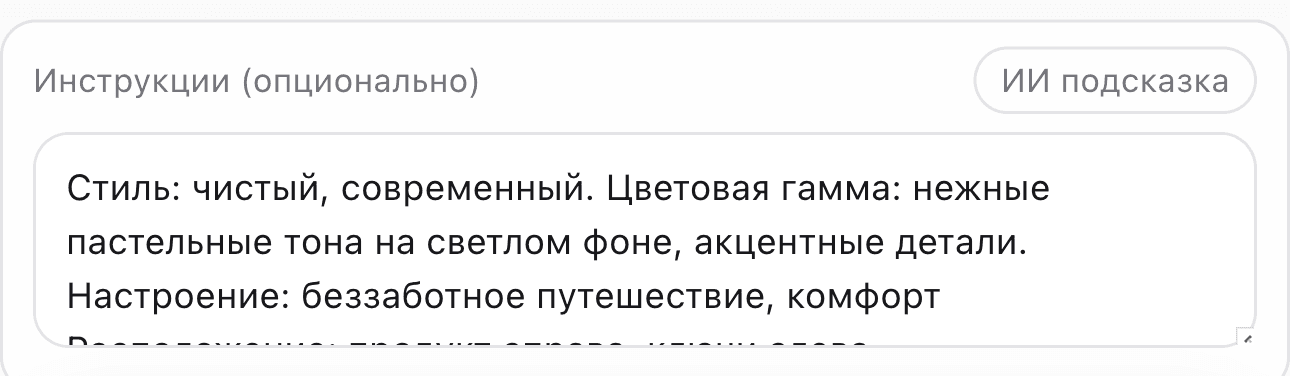
The field auto-grows to fit your text — type 10 lines, no inner scrollbar appears. Same goes for the "AI will suggest" output: a long suggestion is visible at once, no need to scroll inside the field to read it.
You can dictate your instructions: use the microphone button on the right of the field. Describe the card you want — the text appears without filler words, and you can edit it. Transcription is free.
When to use it: you need an unusual format, a specific background, or a particular composition. If you could explain what you want to a photographer in plain words — you can put those same words here.
What you can control through the prompt
The AI handles these requests reliably:
- Background — color, gradient, texture, pattern, or a specific scene.
- Composition — product placement in the frame, viewing angle, symmetry or asymmetry.
- Props and styling — what to place near the product: packaging, fabrics, plants, tableware.
- Format — vertical 4:5, square 1:1, horizontal 16:9.
- On-card text — request a QR code, a label, an article number.
What a prompt won't replace: pixel-perfect geometry, complex branded typography, or exact logo coordinates. For those finishing touches it's easier to polish the card in a graphics editor after generation.
How to write a good prompt
The key rule: concrete nouns beat abstract adjectives.
Not useful: "make it look beautiful and stylish". The AI will do something, but not necessarily what you had in mind.
Useful: "vertical 4:5 format, background — soft gradient from light blue to white, product centered, minimalist, no props".
A few more pointers: name real physical things (white marble, wood grain, a specific color name), reference known visual styles (studio lighting, flatlay, product photography), and avoid metaphors ("warm", "lively").
The "AI will suggest" button
Not sure what to write? Click "AI will suggest" next to the field.
The AI looks at your product and its analysis and generates a ready-to-use prompt for you. It's free and takes about 3-5 seconds. The text appears directly in the field — use it as-is or tweak it from there.
Break your instructions into separate lines
If you have several things to say, don't pack them into one long sentence — put each idea on its own line.
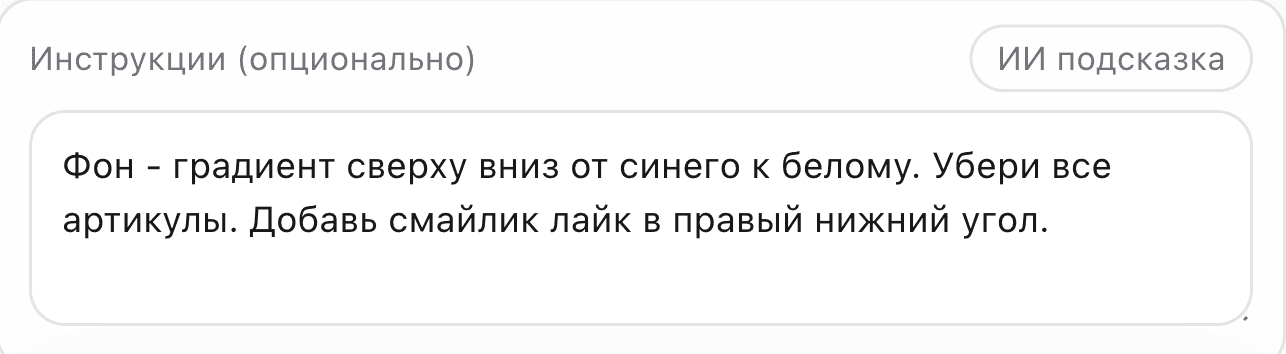
A prompt the AI handles well:
vertical 4:5 format
background — soft blue gradient, fading to white at the bottom
product centered
packaging placed next to it in the foreground
QR code in the bottom-right corner
The same ideas squeezed into one long sentence work worse: the model tends to drop individual requirements when they blend together.
Instructions work alongside templates and references
Custom Instructions is an addition, not a replacement. If you picked a template, the prompt adds what the template doesn't cover. If you're working with a reference, the prompt clarifies what exactly to copy or substitute. All three tools stack — they don't compete.
More on style selection in Choosing a Card Style. How to upload and configure a reference in Style Reference. The full step-by-step flow in Step-by-step Card Generation.