 Sozdai
How to Edit a Generated Card
The card generated — and something's off. The background is too dark, the text shifted, or you just want to see a different version. Good news: none of the editing methods require manual layer-by-layer work. AI reworks the card based on your description.
Three paths. Which one to take depends on how big the change is.
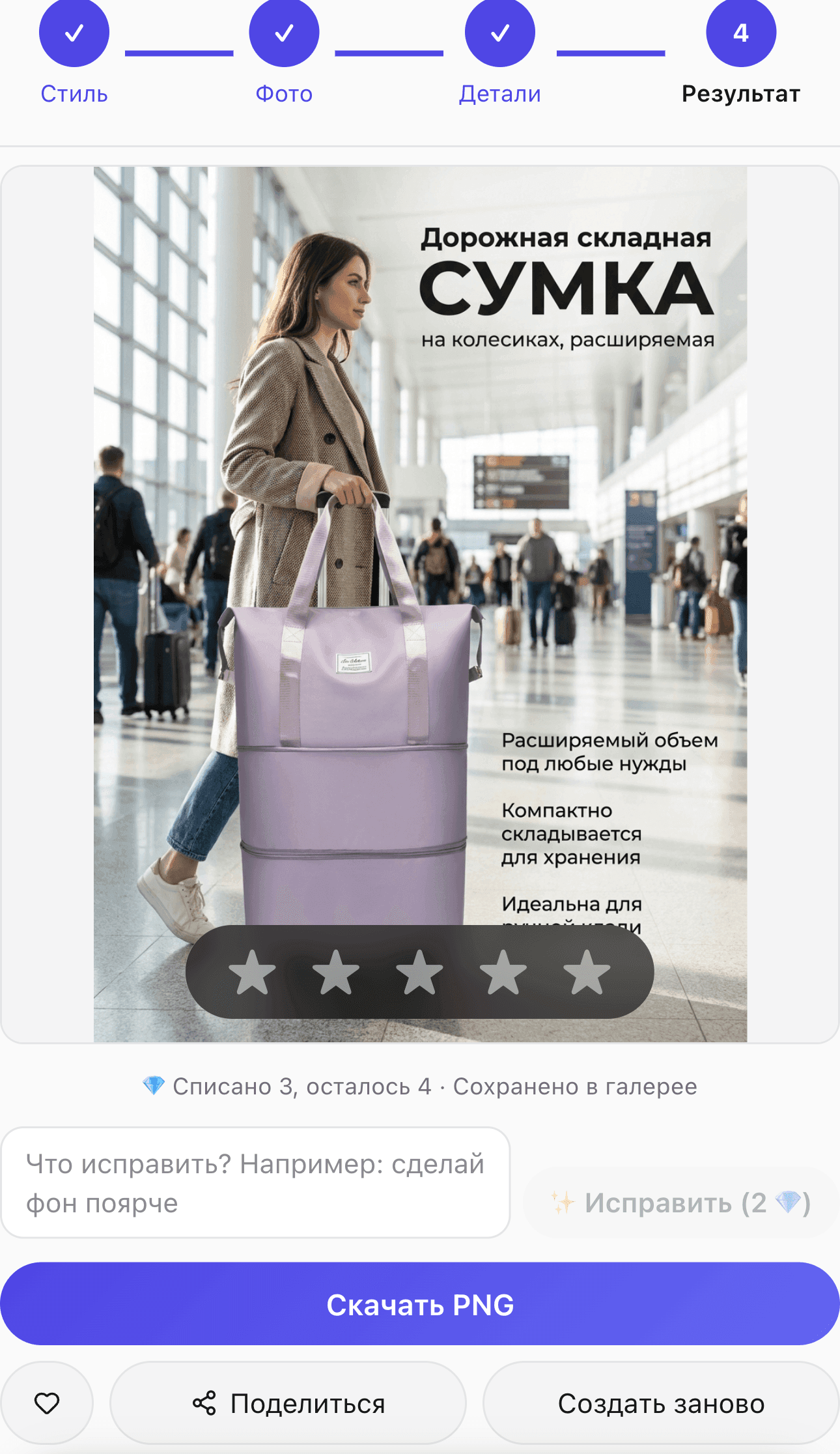
The result screen always shows three buttons: Download, Create again, Refine. Below — when to use each.
1. Text Refine — targeted edits
Refine is the main tool for adjusting a generated card. Write one sentence describing what to change, and AI will apply that edit to the current image. It doesn't redraw from scratch — it makes the specific change you asked for while keeping everything else intact.
Good refine examples:
- "make the background lighter"
- "remove the bottom text"
- "move the logo to the top right corner"
- "replace the packaging with a larger one"
- "make the main headline bigger"
- "change the background to cream"
Bad examples (AI responds unpredictably):
- "make it prettier"
- "improve it"
- "make it more appealing"
Vague instructions without specifics don't work well — rephrase them. Instead of "make it better", write "add a shadow under the packaging" or "make the palette warmer".


Cost: 2 💎 (Flash). Takes 15-25 seconds.
Key detail: each refine builds on the result of the previous one. This means you can run multiple iterations in a row, gradually getting the card where you want it. But the further you go from the original, the more "noise" accumulates — by the 5th or 7th iteration you may start seeing artifacts or unexpected changes. If things are going sideways and the card has gotten worse, it's better to start fresh (method 2).
For more on how to write effective refine prompts and what the tool's limitations are, see Refine with Text.
2. Create Again — a new variant with the same settings
The "Create again" button starts a new generation with the same parameters: template or reference, selected photos, headline, features, custom instructions. Everything the same — but the result will be different. AI is non-deterministic; each run produces a unique image.
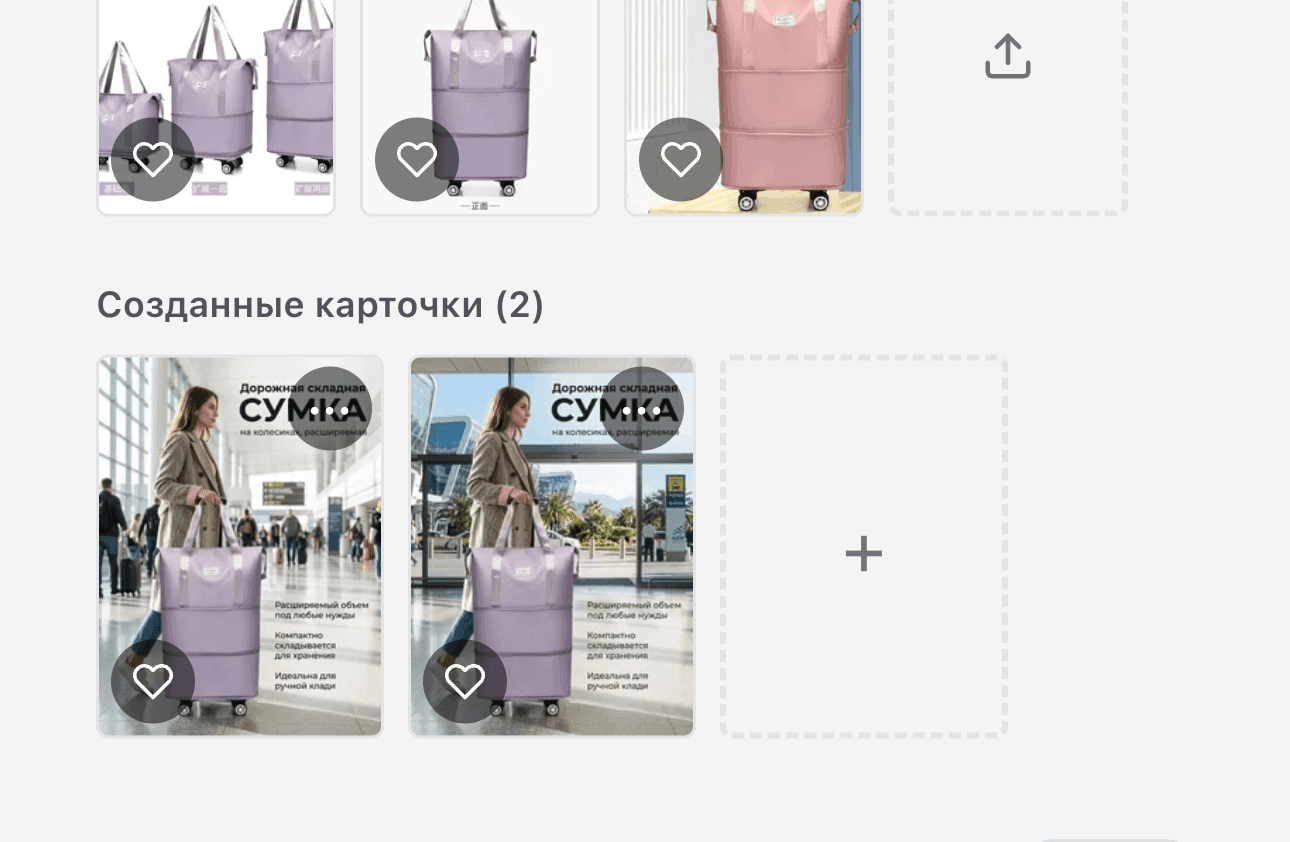
All variants are saved to the gallery — handy for comparing several attempts side by side and picking the best one.
When to use "Create again":
- You want to see other variations on the same template.
- Refine isn't working: the change is too big or the card has drifted too far.
- You need a different frame format (say, 4:3 instead of 3:4): refine doesn't change proportions and charges nothing for such a request — the hint under the field offers a "Make a new variant in 4:3 · N 💎" button. More in Refine with Text.
- The original generation was clearly off (AI misunderstood the task).
Cost: the same 2 💎 (Flash) or 4 💎 (Pro) as the first generation.
3. Change Settings and Generate Again
If the result is wrong at the concept level — not just in the details — you need to go back to the wizard and change the inputs. Hit the «← Back to product» arrow at the top (it returns to the Hub while preserving wizard state), or click an earlier wizard step to jump back to Step 1/2/3 and tweak parameters. You can also switch to Pro mode, where all settings are visible at once — useful when you're not sure which parameter to change. Then click "Create" again.
If you want to start fresh — Step 4 has a «Done, back to product» button that resets the wizard. Your next entry via «Create infographic» opens Step 1 with no saved choices.
What you can change:
- Template or reference — if you need a completely different style.
- Headline — if the text on the card needs a full rewrite.
- Features — add or remove the items shown on the card.
- Custom instructions — refine or rewrite the text prompt.
- Photos — swap the source photo or choose a different one.
This is neither a refine nor a regeneration with the same settings — it's a new generation with different inputs. Useful when you need a different style, different composition, or a different headline.
Cost: 2–4 💎, same as any generation.
Special case: error in the product data
Sometimes the problem isn't style or composition but the text on the card itself: AI picked the wrong statement or specification from the analysis. Trying to fix this through refine is inefficient — it's better to correct the data at the source.
On the product page you can edit any statement or specification from the analysis. After editing, go back to the generator and click "Create again" — AI will use the updated data. For details on editing the analysis, see Editing the Analysis.
Summary: how to choose
- Small fix (background color, text size, element position) → Refine.
- Refine hit a dead end or you want a different variant → Create again.
- Need to change style, headline, or features → go back to the wizard, update settings, create again.
- Error in the product data itself → edit the analysis + "Create again".
Related articles: Refine with Text · Editing the Analysis · Step-by-step Card Generation.